Courses and the dashboard
Where everything lives once you are signed in.
After signing in you land on your dashboard, which lists your courses. Each course contains its roster, its assignments, and everything graded inside them.
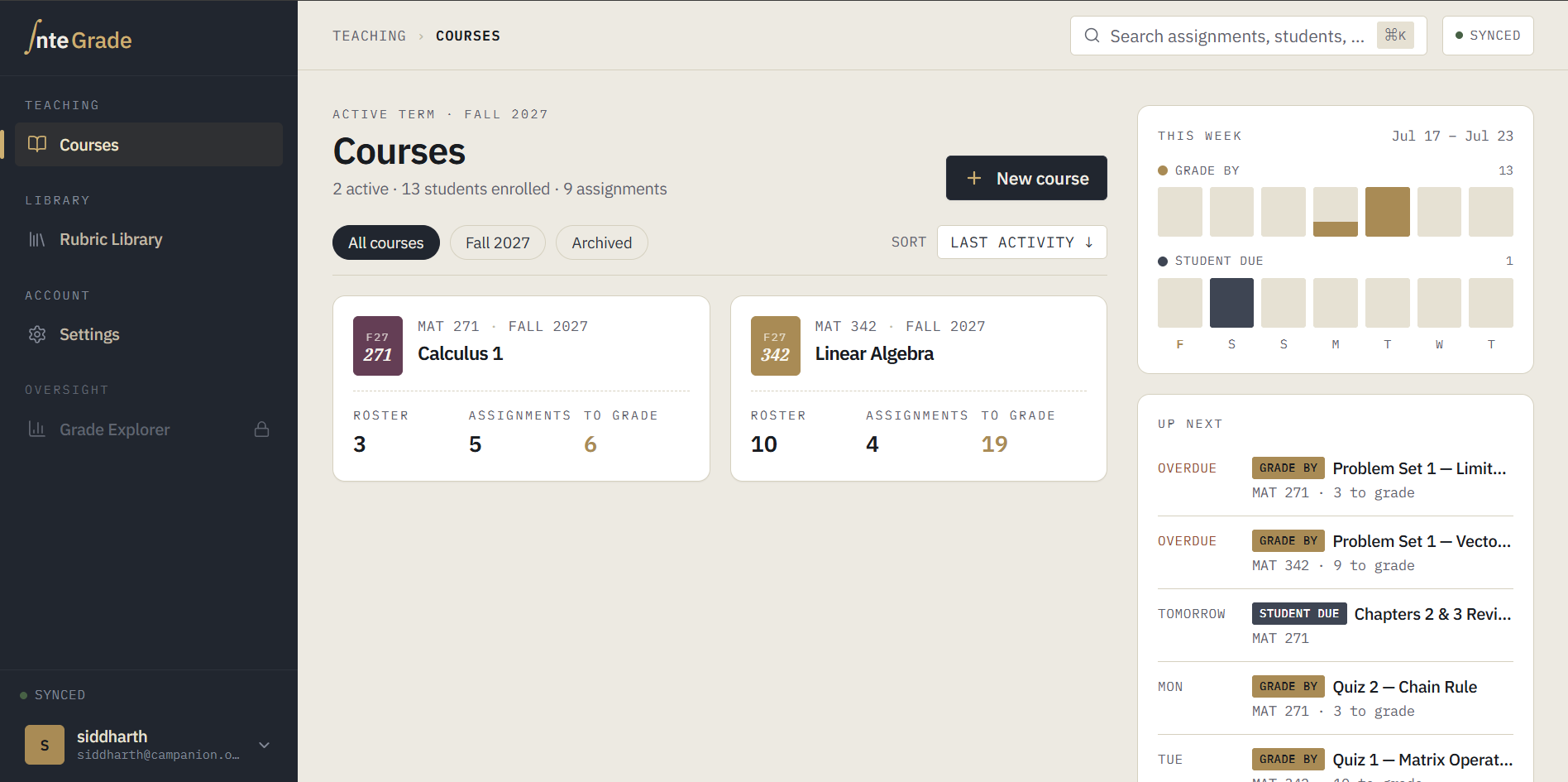
Courses
You create your courses yourself: give one a name and it is ready. Inside a course you will see:
- Assignments: everything you have created in this course, with grading progress at a glance.
- Roster: your students, added by you. See Adding your roster.
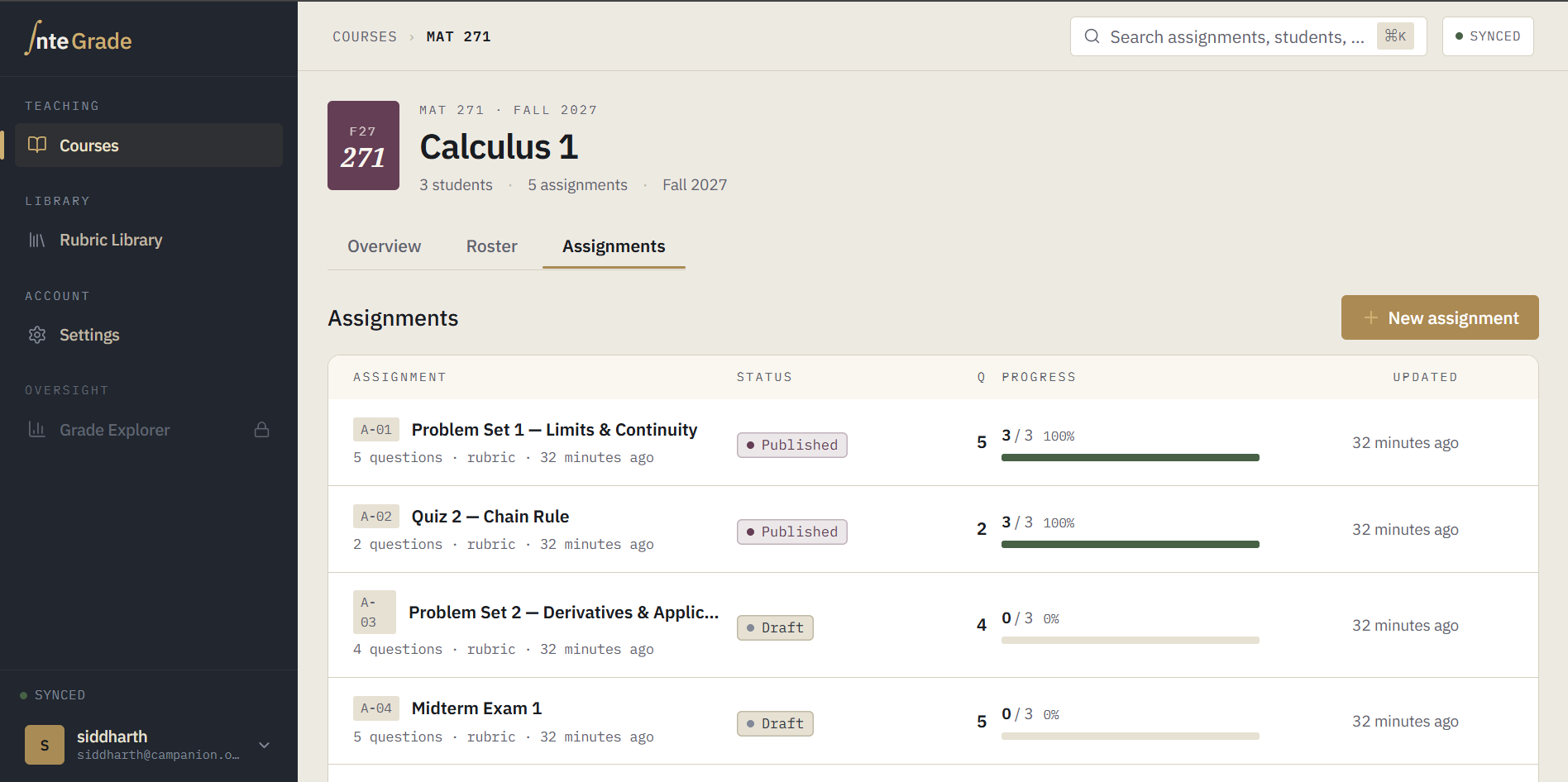
How many courses you can have
The free plan holds three active courses at a time. That limit counts active courses only, so when a term ends, archiving a finished course frees the slot for the next one. Archiving keeps everything in it: the grades, the rubrics, the feedback. It simply moves the course out of the way.
See What is in the free plan for the rest of the limits.
The sync status indicator
Throughout the app you will notice a small status indicator showing whether your work is saved. This is worth getting familiar with early. It is the quickest way to confirm everything is functioning correctly, especially before you close your laptop. Read The sync status indicator.
Where to go next
If this is your first time in InteGrade, the fastest path is the Quick start, which walks one assignment from creation to graded in about fifteen minutes.