Adding your roster
Your student list, added by you. It is what everything else matches against.
Your roster is the list of students in a course. InteGrade matches handwriting against it when you upload scans, and uses it to address feedback when you send work back. It is worth getting right before your first upload.
Adding students
Add your students to the course from the roster view. There are two ways in: add one student at a time, or import a whole list from a CSV file.
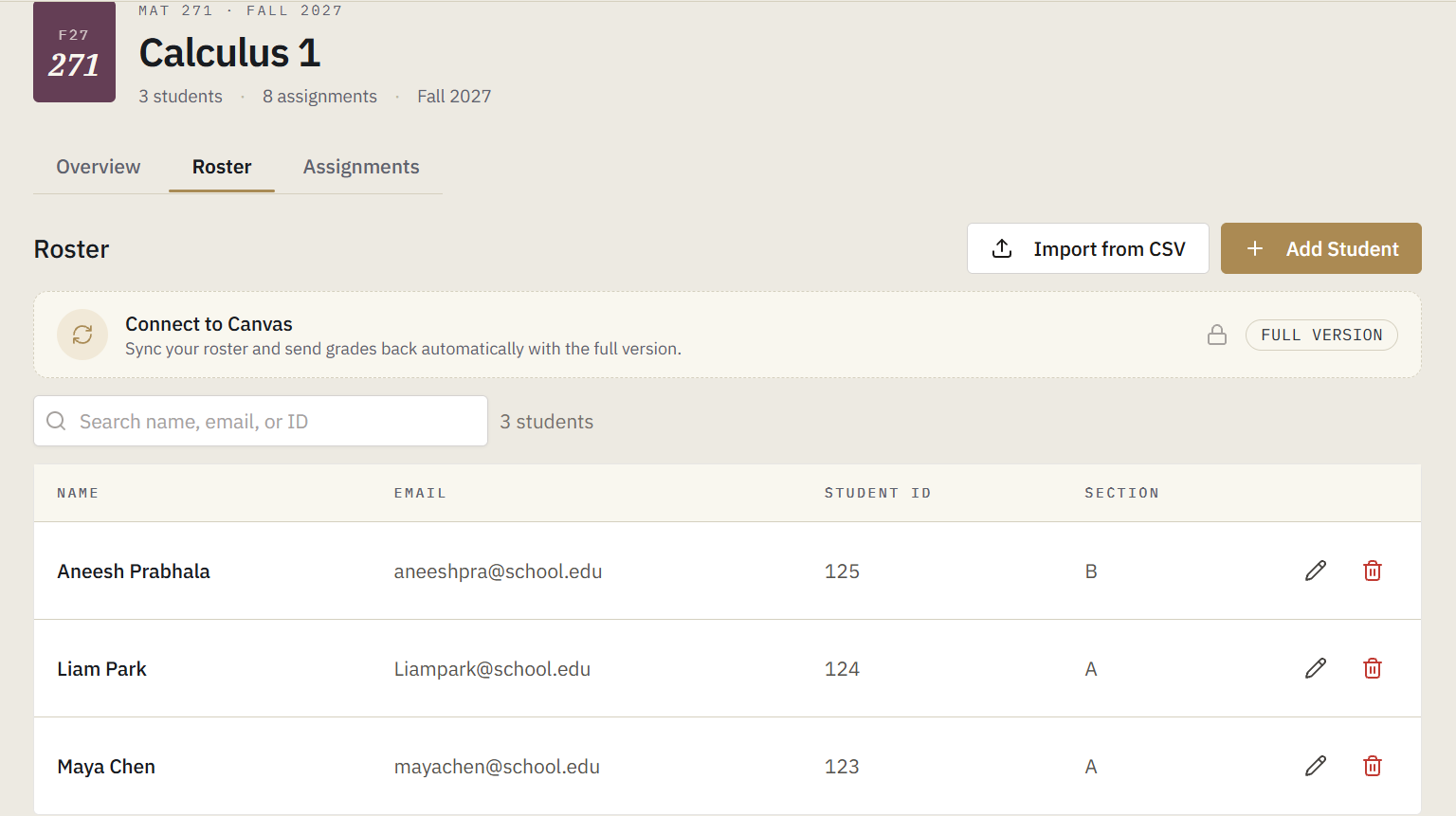
Add Student asks for a name, and optionally an email address, a student ID, and a section. Only the name is required.
Import from CSV reads a file you pick. Put a header row at the top with a Name column, plus any of Email, Student ID, and Section. Common variations on those headings are accepted. If the file has no header row, InteGrade reads the columns in that order instead. Any row without a name is skipped.
Email addresses are worth the effort
A student's email address is optional, but adding it is what lets InteGrade send that student their graded work automatically. Without one, you can still share their feedback; you just copy the link and send it yourself. See Sharing graded work with students.
How many students
The free plan holds fifty students per course. That is per course, not per account, so three courses of fifty is fine.
One quirk worth knowing. If you import students in bulk, every incoming name counts toward the limit as it goes in, including names that turn out to be duplicates of students already on the roster. Importing a forty-name file into a course that already has those forty students can therefore be refused for being over the limit even though nothing new would have been added. If an import is rejected unexpectedly, check for overlap with who is already there.
Students who join or leave
Add late arrivals the same way. Removing a student who has already been graded does not delete their work.
No Canvas here
On the full version, rosters arrive from Canvas on their own and keep themselves current as students add and drop. That is Syncing your roster from Canvas, and it is part of the full version.