Assignments
Drawing question regions
One box per question on the template. It pays off three times over.
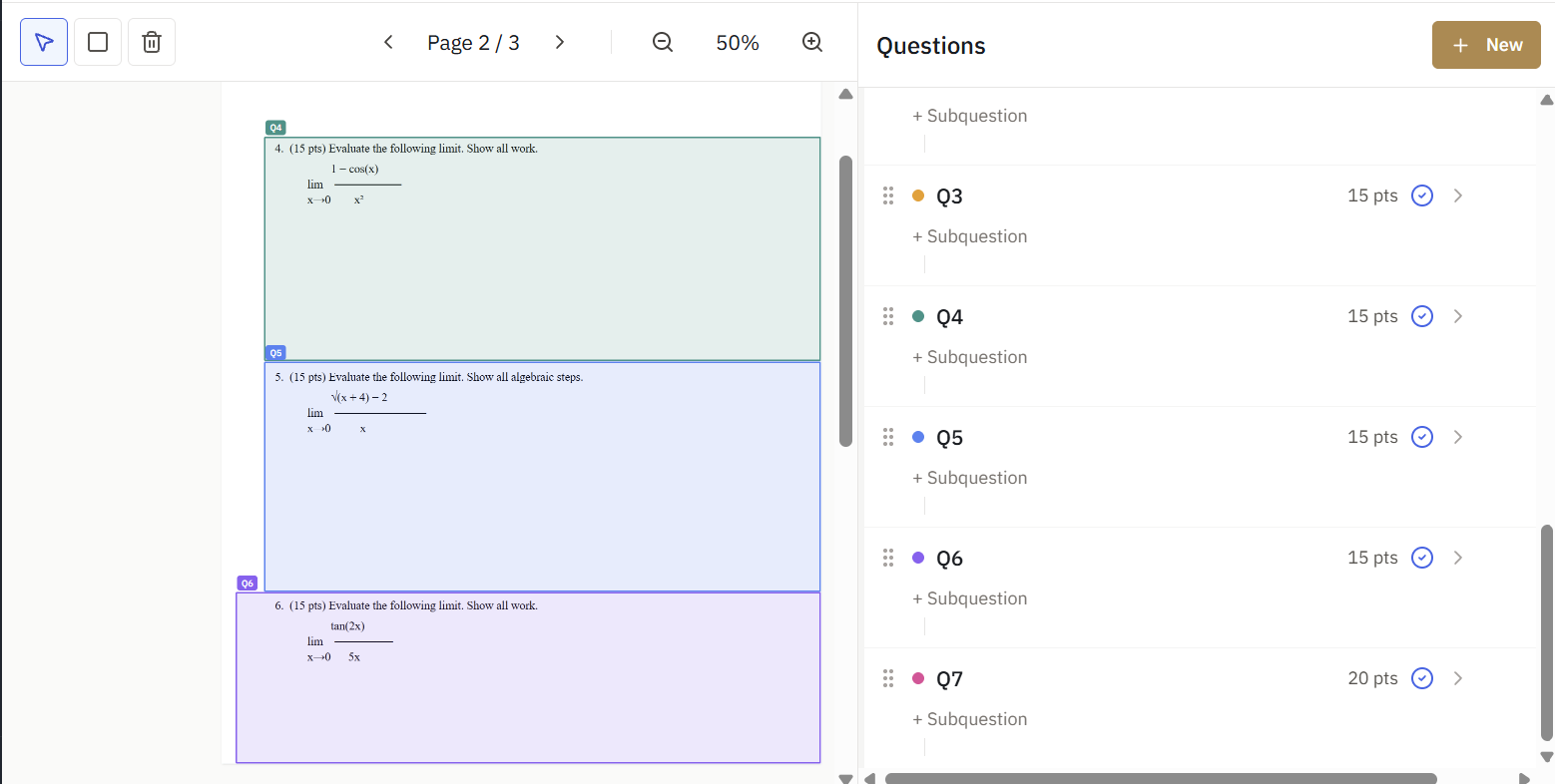
For each question in the outline, draw a rectangle on the template PDF marking where students write their answer for that question.
Why regions matter
Regions do two jobs:
- Auto-zoom while grading. When you move to a question, the viewer jumps to that question's region on every student's submission. No scrolling and hunting.
- Student matching. The region you draw around the name field is how InteGrade reads names off scanned stacks and matches pages to your roster. See Bulk scans and automatic matching.
Drawing a region
- Select a question in the outline.
- On the template, click and drag a rectangle around the answer area.
- Adjust by dragging edges, or nudge with the arrow keys.
Draw generously. Students write outside the lines, so a region slightly larger than the printed answer box catches stray work.
The name region
Draw a region around wherever students write their name (usually the top of page 1). This single box powers automatic matching for every scanned stack you ever upload for this assignment, so it is worth a few seconds of care.
Regions are per-question and live on the template, not on individual submissions. Draw once, and every submission inherits them.