Assignments
Importing an existing rubric
Drop in a rubric PDF and InteGrade rebuilds it, down to the LaTeX.
If you have years of rubrics built up in Gradescope or saved as PDFs, you do not need to re-key them. Attach the rubric PDF when creating an assignment and InteGrade reconstructs the whole thing.
What gets imported
- Every question and subquestion, with the exact labels from your rubric ("Q3", "part (b)").
- Point values, including whether subparts pool points at the parent or carry their own.
- Every rubric item with its point value, deductions and credits both.
- Math, typeset as LaTeX so it renders cleanly.
How to do it
- Export or locate your rubric as a PDF. From Gradescope, a rubric export with student work stripped works well.
- On the new assignment form, attach it in the rubric import slot alongside your template PDF.
- Create the assignment. The import runs during creation, and you land on a pre-populated outline.
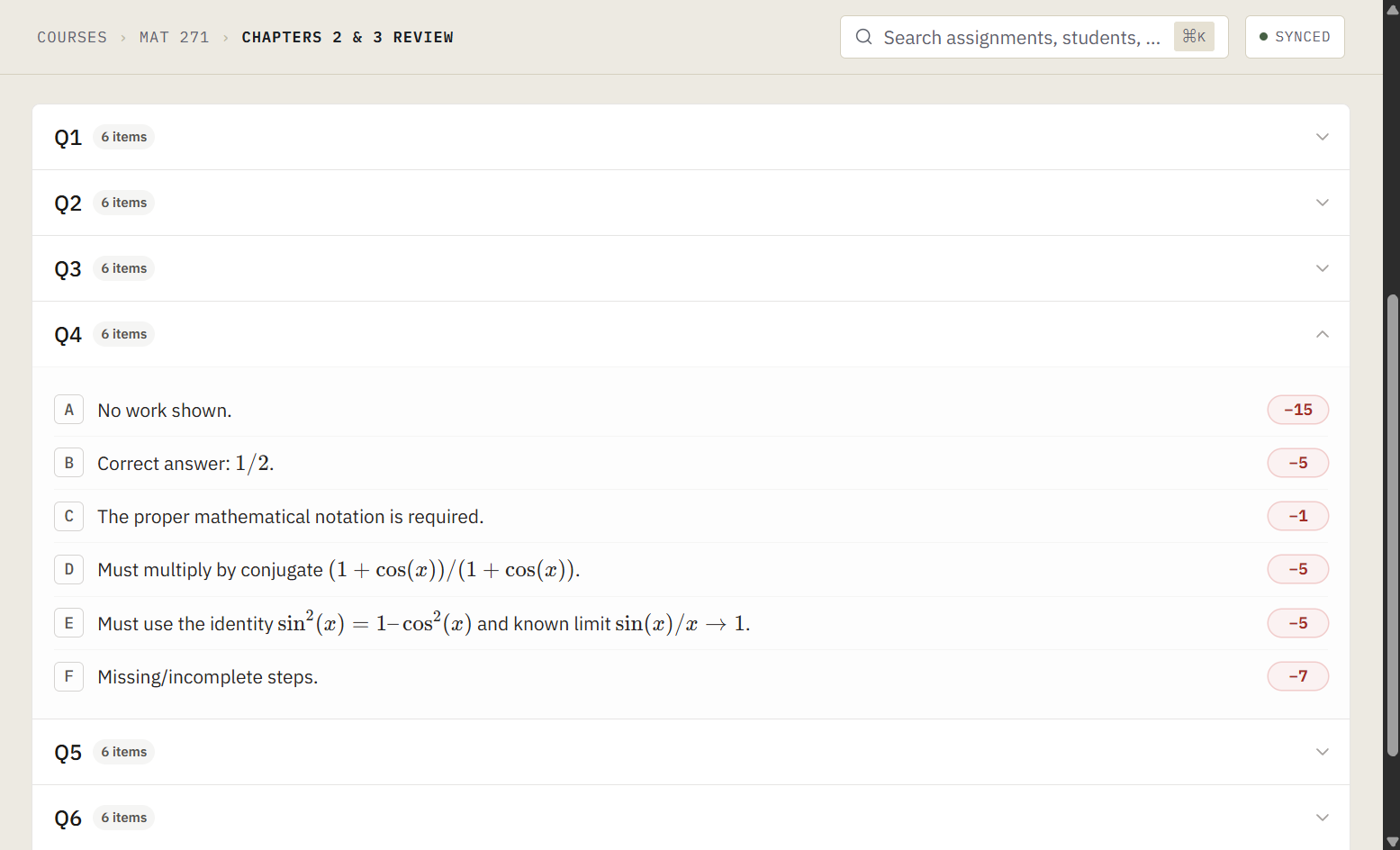
After the import
The import is applied directly to the outline, so review it like you would a colleague's draft:
- Check point values against your original, especially on multi-part questions.
- Draw regions. Imports bring structure and rubric text but cannot know where answers live on your template. Regions still need to be drawn by hand. See Drawing question regions.
- Re-paste images. If a rubric item contained an embedded image, you will see a placeholder reading "paste image here." Copy the image and paste it directly into the item. See Images in rubric items.
If the import misses something
Anything the import got wrong is editable in the outline like any other question or rubric item. If a whole import comes out badly, delete the assignment and retry with a cleaner PDF of the same rubric. A digital export imports better than a photographed printout.