Images in rubric items
Paste a picture of the expected work straight into an item.
Sometimes the fastest feedback is a picture: the correct graph, the expected free-body diagram, the setup students should have used. You can paste images directly into rubric items.
How to paste
- Copy an image to your clipboard (a screenshot, a snip of your answer key, an image copied from any document).
- Click into the rubric item's description where you want it.
- Paste. InteGrade asks you to describe what the image shows.
- Type a short description and choose Save description. The image appears inline and is stored with the item.
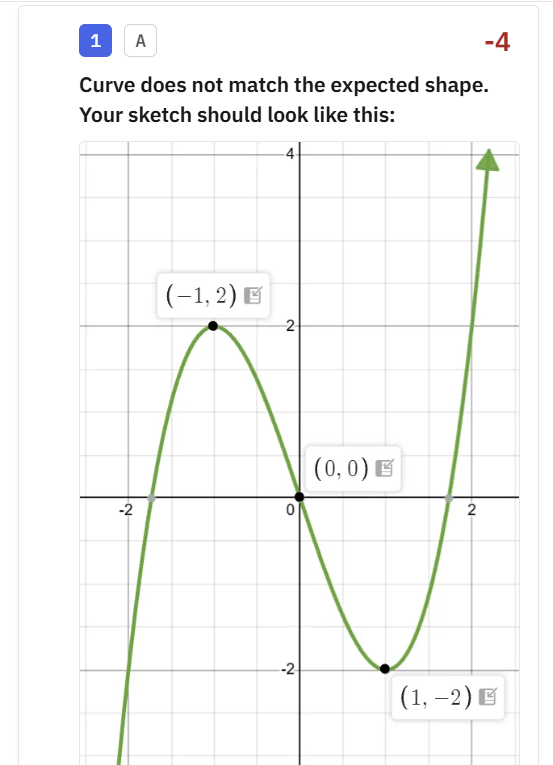
Images work in both the outline editor and the grading view, and they sit alongside text and LaTeX in the same item. Large images are automatically downscaled for fast loading; you do not need to resize before pasting.
Describing the image
Every pasted image needs a text description. Screen readers read it aloud, so a student using one hears what the picture shows instead of reaching a silent gap in your feedback. It is also part of meeting the WCAG 2.1 accessibility requirements many institutions are held to.
Describe the content rather than naming the file. "Plot of f(x) = sin(x) on the interval [0, 2π], three full waves visible" tells a student far more than "graph".
Save description stays unavailable until you type something. If the image carries no information a student needs, choose Decorative instead. Cancel discards the pasted image, so use it only when you pasted something by mistake.
After a rubric import
Imported rubrics replace any embedded images with a "paste image here" placeholder, since image content cannot be reliably extracted from PDF rubrics. Open the original, copy each image, and paste it over the placeholder.